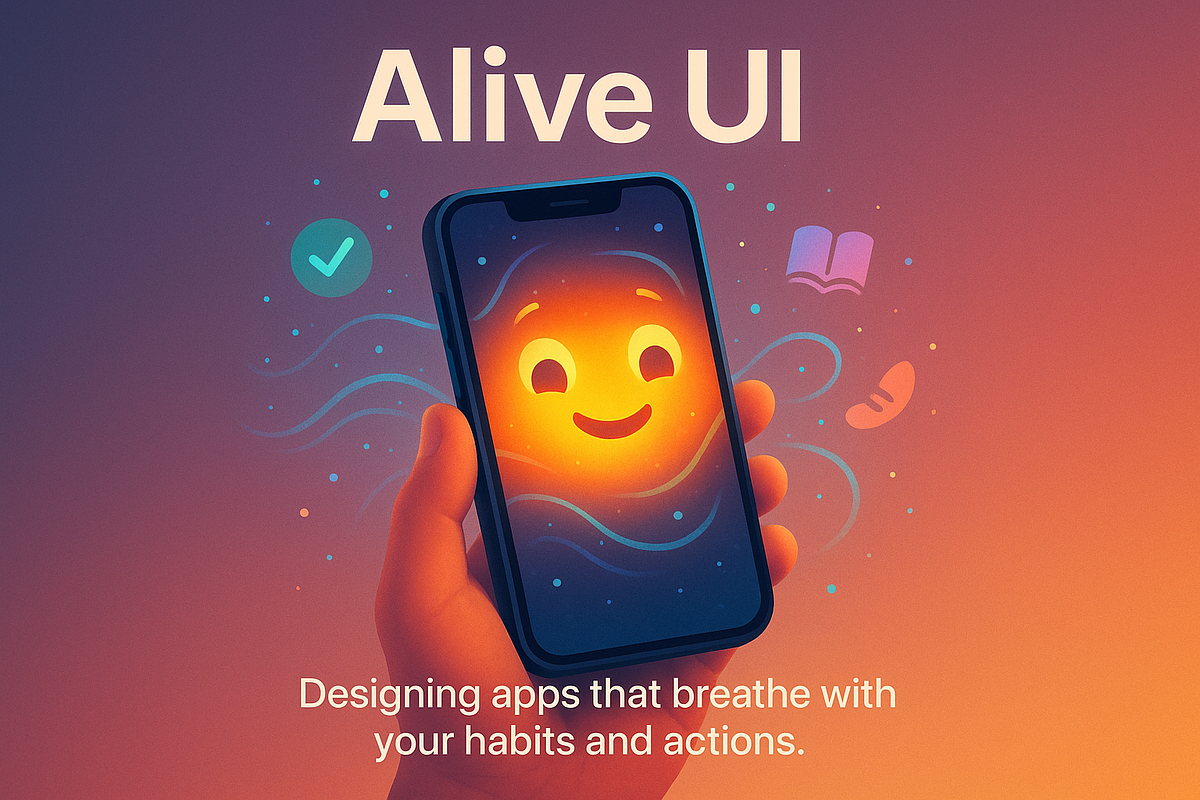
Tap a button on your phone and nothing happens. You tap it again, wondering whether the first touch registered. A moment later, the screen changes, but the delay has already made the interaction feel unreliable.
Now imagine the same button responding immediately with a slight visual change and a gentle vibration. You know your action worked without needing to tap twice.
That small difference shows why feedback matters in touch-based interfaces. People cannot physically press a button on a touchscreen, so the interface must communicate that an action has been recognized. Visual movement, subtle animation, and optional haptic feedback can help bridge that gap.
In gaming interfaces, these details become especially important when communicating changing states, including selections, completed actions, and winning outcomes. This article explores how tactile feedback works, how particle effects and animations can signal win states, and how designers can make these responses feel clear without overwhelming the user.
Why Touch Interfaces Need Immediate Feedback
A physical button provides a familiar sensation. You press it, feel the movement, and understand that something has happened. A touchscreen has no equivalent physical mechanism unless the device provides vibration or another form of haptic response.
As a result, touch interfaces rely heavily on visual and audio signals. A button might change shade when pressed, a panel might slide into place, or a short vibration might confirm an action.
Without feedback, even a correctly functioning interface can feel unresponsive. Users may repeat taps, become uncertain about their actions, or assume that something has gone wrong.
Timing matters. Feedback should generally begin as soon as the interface recognizes the interaction. If a longer process follows, such as loading content or updating a result, the interface can provide a second signal when that process finishes.
These signals should also communicate different meanings. A button press, a completed action, and a successful outcome should not necessarily use the same animation. When every event produces the same burst of color or vibration, the interface becomes harder to interpret.
Using Animation and Particle Effects to Communicate Win States
Particle effects are small visual elements that appear, move, and disappear over a short period. They might resemble glowing dots, tiny stars, floating shapes, or fragments of light.
In a game interface, particles can help draw attention to a specific area when an event occurs. A brief burst around a result, for example, can make that moment more noticeable than an ordinary screen update.
However, the effect should match the event. A small confirmation may need only a subtle color change, while a major visual milestone might justify a more elaborate animation. The interface should not treat every action as if it deserves the same level of celebration.
Motion can communicate meaning in other ways. A button might compress slightly when tapped, a selected card might rise a few pixels, or a result panel might appear with a short easing transition. These movements help users understand which element responded and where their attention should go.
In casino-inspired digital design, glowing symbols and particle bursts can create a distinctive visual style. Yet designers should avoid using celebratory effects to imply a successful outcome before the result is actually confirmed. Feedback should accurately represent the system’s state rather than mislead users.
The strongest effects are often brief. They make an event noticeable, then allow the interface to return to its normal rhythm.
Combining Visual, Audio, and Haptic Feedback
Visual feedback is only one part of the experience. Audio and haptic signals can provide additional confirmation, especially when a user is holding a phone and not looking directly at every part of the screen.
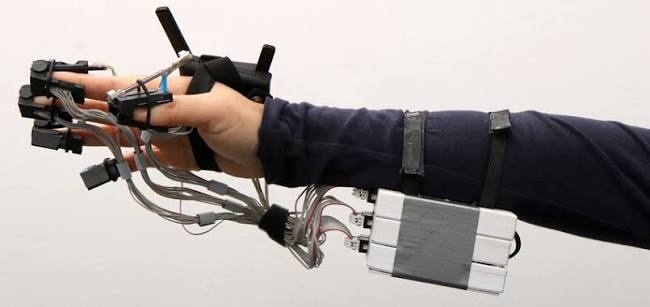
Haptic feedback uses a device’s vibration capabilities to communicate an interaction. A short, gentle response may confirm a selection, while a different pattern could indicate an error or an important state change.
The quality of this response matters more than its intensity. Strong or repeated vibration can become irritating, particularly during extended use. Users should be able to control or disable nonessential haptic effects where appropriate.
Audio can provide another layer of feedback, but it should not be the only signal. People may use their devices in quiet environments, keep their phones muted, or rely on accessibility features. Important changes should remain understandable through visual cues as well.
Consistency is essential. If the same action produces a different response every time, users may struggle to learn what the interface is communicating. A small set of distinct, repeatable signals is generally easier to understand than a collection of unrelated effects.
Practical Design Techniques for Responsive Touch Interfaces
Begin by identifying the main events in the interface. These might include pressing a button, selecting an item, completing an action, receiving an error, or displaying a confirmed result.
Assign a clear response to each event. A pressed button might change shade immediately. A completed action might trigger a short transition. A confirmed win state could use a brief particle effect, provided the visual treatment is appropriate for the context.
Keep animations short enough that they do not delay the next interaction. Use easing to make movement feel smooth, but avoid unnecessary motion when a simple color or shape change communicates the same information.
Test the interface on actual touch devices. An animation that looks polished with a mouse may feel slow when someone is tapping rapidly. Check response timing, vibration strength, performance, and readability on smaller screens.
Finally, provide sensible controls for motion, sound, and haptic feedback. Respect device settings where possible, avoid excessive flashing, and make sure the interface remains understandable when optional effects are turned off.
Conclusion
Tactile feedback helps touch interfaces feel responsive by confirming that actions have been recognized and communicating when important states change. Visual transitions, particle effects, audio, and haptic responses can each contribute to that experience.
The goal is not to animate every interaction. It is to choose the right response for the right event, keep it consistent, and make sure it adds clarity rather than distraction. When feedback is immediate, meaningful, and restrained, a touch interface becomes easier to understand and more satisfying to use.
Frequently Asked Questions
What is tactile feedback in a touch interface?
Tactile feedback refers to physical sensations, commonly produced through device vibration, that communicate a response to a user’s action. It is often combined with visual or audio feedback.
How do particle effects improve gaming interfaces?
Particle effects can draw attention to specific events, such as a confirmed result or an important state change. When used selectively, they make those events easier to notice without requiring additional text.
What is the difference between visual feedback and haptic feedback?
Visual feedback uses changes on the screen, such as color, movement, or icons. Haptic feedback uses physical sensations, such as vibration, to communicate that an interaction or event has occurred.
How should animations communicate win states?
Animations should appear after the system confirms the relevant outcome. Their intensity should match the significance of the event, and they should not obscure important information or misrepresent the result.
Can too much haptic feedback harm the user experience?
Yes. Frequent or intense vibrations can become distracting or uncomfortable. Designers should use haptics selectively and provide controls where appropriate.
How can designers make touch interactions feel more responsive?
Provide immediate visual acknowledgment, use clear state changes, avoid unnecessary delays, and test interactions on real devices. Audio and haptic feedback can offer additional confirmation when suitable.